
Desktop Queue
Desktop icon queueing tool · macOS menu bar
Desktop Queue is a small macOS menu bar utility that lines up the desktop icons on your main display in the order the files arrived. The oldest sits in the top-right corner and fills a column downwards, then continues in the next column to the left, with the newest at the end of the queue — so the desktop reads as a timeline from old to new.
Why it exists: macOS's built-in "Sort By → Date Added" puts the newest file in the top-right corner, and icon view offers no option to reverse that order. Desktop Queue gives you the opposite direction.
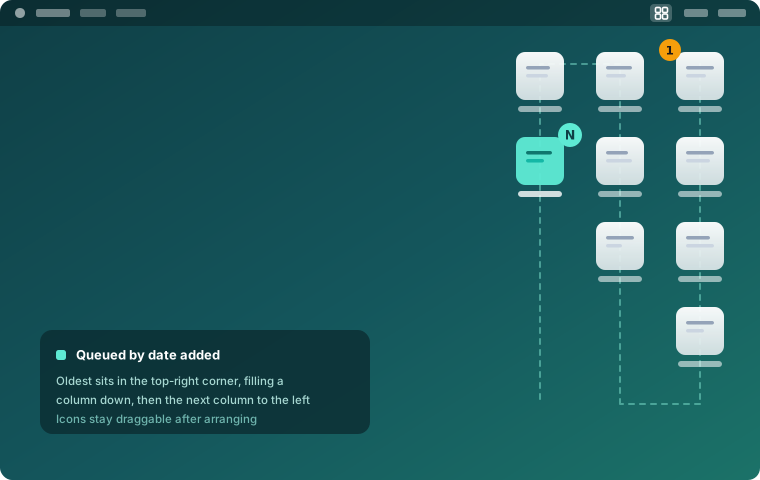
Illustration of the arrangement
Features
Queued by date added
The oldest item sits in the top-right corner. Icons fill a column downwards, then continue in the next column to the left, with the newest at the end of the queue. When the date added is missing, it falls back to the creation date and then the localized file name.
Main display only
Only the screen that holds the menu bar is rearranged. Icons on every other display stay exactly where you put them, so a multi-monitor setup is never disturbed.
Two ways to fill gaps
With "close gaps after deleting" on, the whole queue reflows and items shift up to fill the hole. With it off, positioned icons stay put and only new items drop into the free slots.
Auto-arrange and one-click undo
Optionally rearrange once whenever the desktop changes, with a 400 ms debounce so a burst of changes never triggers repeated passes. "Restore previous positions" puts everything back the way it was before the last run.
Adjustable spacing, disks handled separately
Row spacing is adjustable from 112 to 200 and column spacing from 100 to 260 — widen it when long file names overlap the next column. Mounted disks and DMG volumes go to the end of the queue by default, or can be left alone entirely.
Icons stay draggable
The app arranges your icons once and then gets out of the way. Unlike Finder's "Sort By", nothing is locked down — move any icon by hand whenever you like.
First-time setup (three steps, once only)
macOS exposes no public API for placing desktop icons, so two permissions are required: reading the Desktop folder (for the date added) and controlling Finder (to move the icons).
Turn off Finder sorting
Right-click an empty spot on the desktop, then Sort By and choose None. Leave "Use Stacks" unchecked in the same menu. Otherwise Finder keeps snapping icons back to its own order.
Grant access to the Desktop folder
Menu bar icon, then Settings, then "Grant access to Desktop folder" and pick the current user's Desktop folder. This is how the app reads each file's date added.
Confirm and run it once
Tick the confirmation box in Settings and choose "Arrange now". macOS will ask whether the app may control Finder — allow it. There is no public API for placing desktop icons, so the work has to go through Finder.
Worth knowing: ordering relies on the date the file was added to the desktop. For a few files — copied from a Windows drive, for instance — that date can be inaccurate, which pushes them to the front of the queue.